


So, you want to add text to your TikTok videos? The basic process is pretty straightforward: once you've recorded or uploaded your clip, just tap the ‘Aa’ icon on the editing screen. You can type out your message, pick a font and color, and then just drag it wherever you want.
But that's just scratching the surface. The real magic happens when you master the little details that make your text pop and grab attention.
Your Quick Guide to Adding Text on TikTok

Getting comfortable with TikTok's text tools is one of the most important skills you can develop as a creator. We're not just talking about throwing words on the screen; we're talking about adding layers of context, landing a joke perfectly, or making a point crystal clear. All of this has a huge impact on how people actually engage with what you make.
Think about it—the right text can be the very thing that stops a viewer mid-scroll. It can break down a complex topic in seconds or add that final punchline. Nailing this starts with understanding the editor inside and out. If you're looking for more advanced tips on growing your account, we share a ton of insights over on our creator-focused blog.
Before we jump into the step-by-step, let's get a quick overview of the tools you'll be working with. I've put together a simple table that breaks down the main text features right inside the TikTok editor.
TikTok's In-App Text Tools Explained
| Text Tool | What It Does | Best Used For |
|---|---|---|
| Standard Text | The main tool for adding customizable text overlays. | Adding hooks, context, jokes, or calls-to-action. |
| Text-to-Speech | Reads your on-screen text aloud in a chosen voice. | Enhancing storytelling and making content more accessible. |
| Set Duration | Controls exactly when your text appears and disappears. | Timing text with specific audio cues or on-screen events. |
| Auto Captions | Automatically generates captions from your video's audio. | Improving accessibility for all viewers, especially in sound-off environments. |
Think of this table as your cheat sheet. It’s a great way to see what's possible before we really get into the weeds of how to use each feature to its full potential.
Mastering the TikTok Text Editor
So, you've tapped the 'Aa' icon and typed out your text. Welcome to the fun part. This is where you go from just adding words to actually designing a key part of your video's look and feel. The built-in editor gives you a ton of power to make your text pop.
First things first: fonts. The font you pick immediately sets the tone. Think about it—a flowy, handwritten script for a funny skit, a big, bold font for a hard-hitting point, or something more classic for a storytelling video. Don't just settle for the default; take a second to scroll through and find one that really fits the vibe you're going for.
Color is next, and this is crucial for readability. You absolutely need high contrast. If your video background is dark, go for bright colors like white, yellow, or a vibrant cyan. If you’re working with a lighter background, black or another deep, rich color will stand out best.
Fine-Tuning Your Text’s Appearance
Beyond just picking a color, TikTok gives you a couple of simple tools to make sure your text never gets lost in the action.
- Give it a background: See that first little icon on the left, the 'A' with a box around it? Tap that. It adds a solid or semi-sheer background to your text, which is a total lifesaver for busy videos where the text would otherwise be impossible to read.
- Add an outline: The next icon over adds a stroke or outline to the letters. This little trick makes the text feel sharp and defined, helping it separate from whatever is happening behind it.
Pro Tip: My go-to combo for maximum visibility is bright yellow text with a thin black outline. It's a classic for a reason—it pops against almost any background and is super easy for viewers to read quickly.
Resizing and Positioning Your Text
Once your text looks good, you need to put it in the right place. This is all done with your fingers, and it's pretty intuitive. You can pinch and zoom with two fingers to make your text a tiny footnote or a massive headline. A quick twist with two fingers will rotate it, too.
To move it, just drag the text box anywhere on the screen. Now, here's a super important tip: always keep the TikTok "safe zones" in mind. You have to avoid putting key information too close to the edges, especially the bottom and the right side. That’s where TikTok overlays your username, the caption, and all the like/comment/share buttons. If your text is there, it's going to get covered up, and your message will be lost.
How to Perfectly Time Your On-Screen Text
Great timing is what separates a truly dynamic video from a flat, boring one. When you can control exactly when your text appears and vanishes, you can sync your message perfectly with your audio or on-screen action, turning simple text into a powerful storytelling tool.
It’s actually pretty simple to do. Just tap on any text box you've already created. You'll see a few options pop up, and you’re looking for the one labeled ‘Set duration’. This is your command center for timing.
Once you tap it, a mini timeline of your video appears at the bottom of the screen. You'll see a red bar that shows how long that specific piece of text is visible. All you have to do is drag the handles on either side of that red bar to make the text appear and disappear at the exact moments you want.
Syncing Text with Action
This is where you can get really creative. You could have a question pop up on screen right as you say it. Or maybe you want a punchline to appear at the perfect moment to land a joke.
Think about a cooking tutorial. You could have the ingredient measurements appear only for the few seconds that you're actually adding them to the bowl. It keeps the screen from getting cluttered and focuses the viewer's attention right where it needs to be.
I’ve seen this work brilliantly in "get ready with me" videos. The creator makes each product name appear on screen for just the few seconds they’re using it. It's a clean, professional look that guides the viewer's eye.
Mastering the styling and placement is the first step, but timing is what brings it all to life.
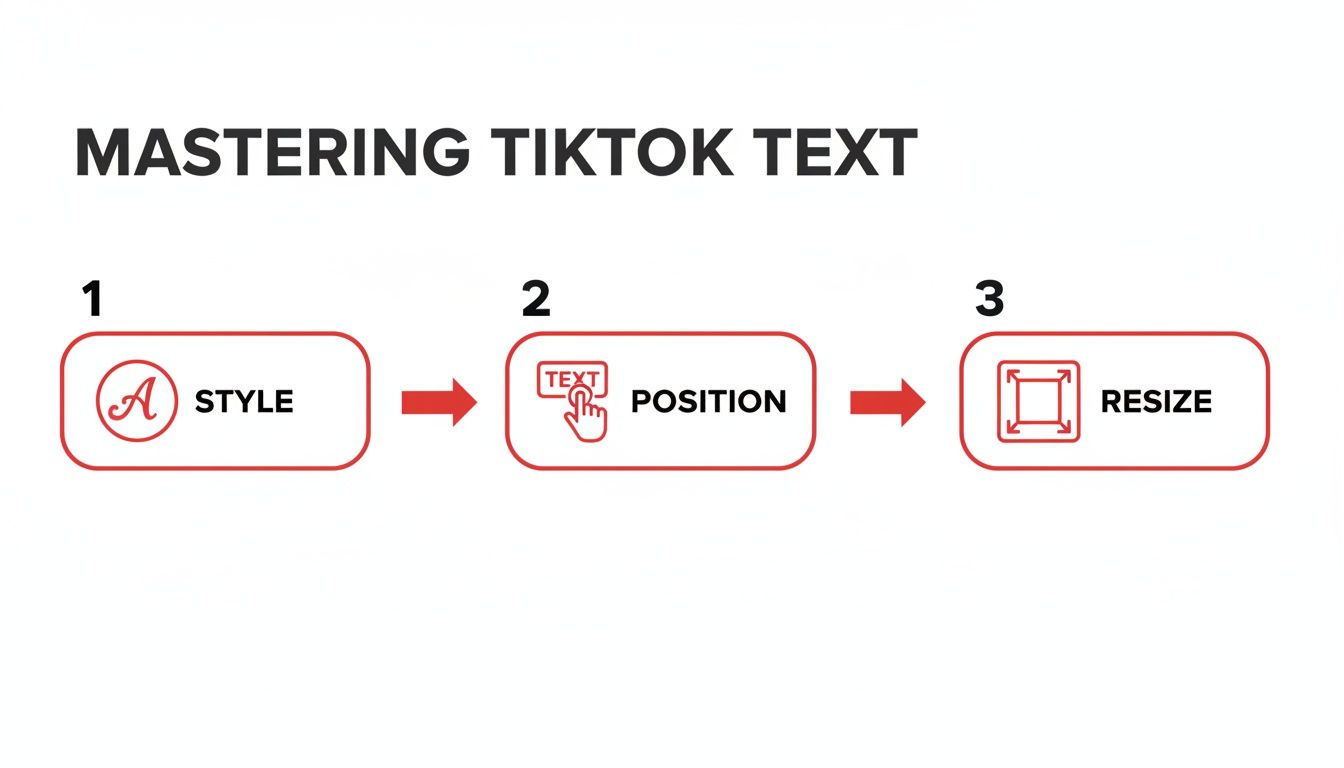
If you want to create a more complex effect, try sequencing multiple text boxes. Add your first phrase, set its duration, and then add your next one. By setting the second text box to start right as the first one disappears, you can build up a story or reveal information piece by piece. Getting this technique down for how to add text to TikTok will seriously elevate your content.
Using Text-to-Speech and Auto Captions
Adding text to your video is one thing, but making it talk is another. TikTok gives you two incredibly useful, built-in tools to bring your words to life and make your content more accessible: Text-to-Speech and Auto Captions.
Text-to-Speech has become a signature part of the TikTok experience, adding a whole new layer of personality to countless videos. Once you've typed out your text, just tap on it and look for the Text-to-Speech icon—it looks like a little person speaking. From there, you can pick from a bunch of different voices to read your text aloud. It’s perfect for storytelling, creating a funny robotic narrator, or just adding a different vibe.
Why Accessibility Matters
Thinking about accessibility isn't just a nice thing to do; it’s a smart strategy for growing your audience. A huge number of people scroll through TikTok with the sound off, whether they're on a bus or just trying to be quiet. Auto captions make sure your message still lands, even in complete silence.
You can turn them on easily. After you’ve recorded your video, find the Captions button in the editing menu on the right. Tap it, and TikTok will get to work transcribing everything you said.
Pro Tip: Always, always review the captions TikTok generates. The AI is pretty good, but it can definitely mishear words. A quick proofread keeps you from looking sloppy and ensures your message is crystal clear.
This one step opens up your content to viewers who are deaf or hard of hearing, not to mention the massive "sound-off" crowd. It directly helps boost watch time and engagement. In fact, AI-powered captioning has been a massive time-saver for creators, with some analyses showing it can cut down manual editing time by 40–60%. You can dig deeper into how automated text overlays are trending in market reports from Accio.com.
While getting good at TikTok’s own text tools is essential, it also pays to understand the bigger picture. Learning different ways for how to add captions to videos can elevate your content on any platform you use. When you start using these features, you’re not just typing on a screen—you're building a smarter, more inclusive content strategy.
Why On-Screen Text Is Your Secret Weapon for Engagement
Adding text to your TikToks is so much more than just a creative flourish. It’s a serious strategy for grabbing attention and getting your videos seen by the right people. Think of it this way: your text acts like a set of instructions for the TikTok algorithm, telling it exactly what your content is about and who it's for.
Those first three seconds are everything. A killer line of text—what we call a hook—is often the one thing that stops someone from scrolling right past your video. Imagine you see a video pop up with the text, "You've been cooking pasta wrong." You're probably going to stick around to see why, right? That’s the power of a good hook.
How Text Works Like a Keyword Strategy
TikTok’s algorithm is incredibly sophisticated. It doesn’t just listen to your audio or look at your hashtags; it actually reads the text you place on screen. This is a huge deal for discoverability.
When you add text like "easy dinner recipes" to your video, you’re basically giving TikTok a keyword. The platform then uses that keyword to push your content onto the For You pages of people who love watching cooking videos. It’s a direct line to your target audience.
According to TikTok's 2025 Trend Report, text overlays are becoming a massive factor in how videos get discovered. And the data backs it up. One industry analysis found that videos with captions under 100 characters got 21% higher engagement. Shorter is often better.
My personal rule is to design the video with text in mind from the very beginning. Instead of treating it as an afterthought, I plan where my hook will go and what key phrases I'll use to reinforce the video's core message.
This kind of strategic thinking is what separates videos that go viral from those that flop. It ensures your content doesn't just get views, but gets views from the right people.
If you really want to level up, it's worth learning how to properly caption videos for SEO and engagement, since the same principles apply here. And for creators who want to hit the ground running, starting with a monetized TikTok account can give you a major head start, letting you focus on making amazing content from day one.
Pro Tips for Text Placement and Readability
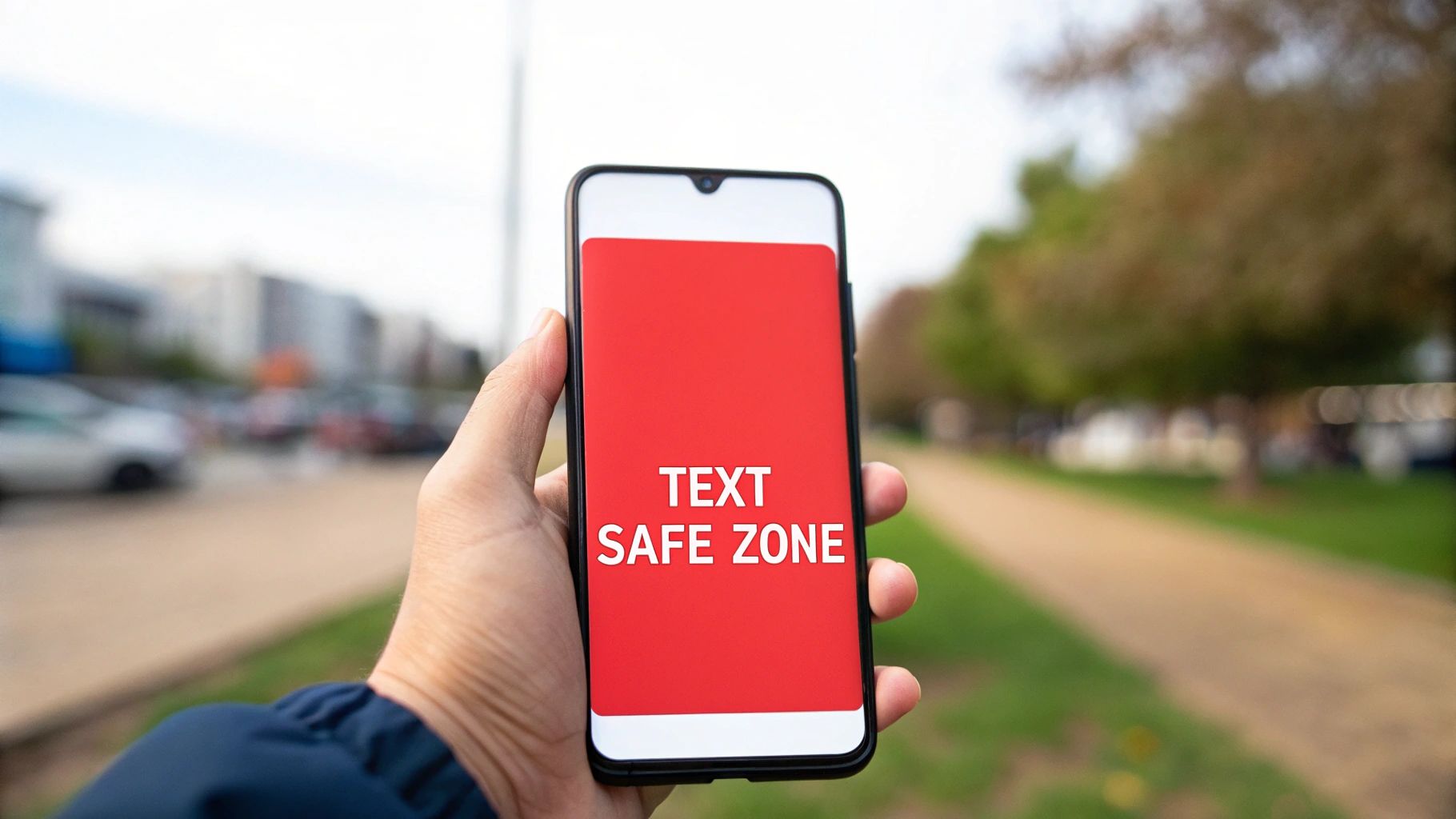
Knowing how to add text to a video is one thing, but knowing where to put it is what separates the pros from the beginners. It's a small detail that makes a massive difference in how polished your TikToks look and feel.
The number one rule I tell everyone is to mind the "safe zones." This is the central area of your screen that stays clear of all the TikTok interface elements—the like button, your username, the caption, and so on. If you put crucial text along the right side or the very bottom, it's going to get covered up. Guaranteed.
Choosing Fonts That Fit the Vibe
Your font choice says a lot about your video's personality. A bubbly, rounded font can scream "comedy skit," while a sharp, modern sans-serif font feels more at home in an educational or business-focused video. The real trick is to find a style that fits your personal brand and stick with it. Consistency helps people recognize your content in a split second.
Here are a couple of quick font rules I always follow:
- Clarity is King: Ditch the super-fancy or paper-thin fonts. They might look cool on a big screen, but they become a blurry mess on a phone.
- Make it Pop: Contrast is your best friend. Use light text on dark backgrounds and dark text on light ones. For busy video footage, don't be afraid to add an outline or a solid background to your text to make it stand out.
Think of your on-screen text as part of the user experience. If someone has to squint or pause to figure out what you wrote, you've already lost them. They'll just scroll on.
It’s not just about looking good, either. Smart text placement directly impacts your video’s performance. For example, we know that hooks placed within the first 1.5 seconds can boost engagement by up to 35%. You can dig into more stats like this in recent platform studies. By keeping your text in those safe zones and making it easy to read, you're not just improving the viewing experience—you're making your content more effective.
Common Questions About Adding Text to TikTok
Even after you've got the hang of adding text, some specific situations always seem to trip people up. Let's run through a few of the most common questions I hear from creators.
The first one is a biggie: Can I edit text after I’ve posted my video?
Unfortunately, the answer is a hard no. Once your TikTok is live, all the on-screen text and captions are baked into the video file. If you catch a glaring typo or think of a better way to phrase something, your only move is to delete the video and re-upload a corrected version. It's a pain, but it's the only way.
Juggling Multiple Text Boxes and Fonts
Getting multiple text pop-ups to appear at different times can also feel tricky at first, but it's pretty straightforward.
Just add your first bit of text and use the "Set duration" tool to time it perfectly. Then, instead of trying to edit that same text box, go back to the main editing screen and tap the "Text" icon to create a brand new one. This new text element gets its own independent timeline, so you can make it appear and disappear whenever you want.
This technique is a game-changer for creating dynamic Q&A videos or for revealing points in a "Top 3" list one by one to keep viewers hooked.
Finally, what's the deal if you can't find all the cool fonts other creators are using? This is usually due to TikTok rolling out new features, like fonts, to different regions or devices at different times.
Your first step should always be to check the app store and make sure your TikTok app is fully updated. Sometimes, a font is also tied to a specific text style or effect, so play around with those options. If you're still stuck or want some personalized advice for your account, you can always get in touch with our experts for more specific help.


