


If you're serious about growing a YouTube channel, setting it up as a Brand Account isn't just a good idea—it's the first real step toward building a sustainable business. This simple change transforms your channel from a personal project into a professional asset, completely separating it from your personal Google profile.
This move allows you to securely add team members and manage your brand without ever sharing your private passwords.
Why a Brand Account Is Non-Negotiable for Serious Creators
Think of a personal YouTube channel like a one-person shop tied directly to your personal email. Everything runs through you, which makes it a nightmare to delegate tasks or even keep your private digital life separate from your public creator persona.
A Brand Account, on the other hand, operates like a separate business entity. It's the professional backbone that supports the most successful channels on the platform.
The benefits here aren't just about staying organized; they're strategic advantages that unlock growth, beef up security, and build long-term value.
- Team Collaboration: You can finally give your video editor, thumbnail designer, or virtual assistant access without handing over your Google password. Assign roles like 'Manager' or 'Editor' to control exactly who can do what. It's clean and secure.
- Enhanced Security: By creating a barrier between your channel and your personal account, you drastically reduce risk. If your personal email ever gets compromised, hackers won't automatically get the keys to your entire YouTube business.
- Scalability and Transferability: A Brand Account is a sellable asset. Should you ever decide to sell your channel, the handover is clean and simple. Trying to offload a channel tangled up with your personal Google account is a logistical and security mess you don't want.
To really see the difference, let’s break it down side-by-side.
Personal YouTube Account vs Brand Account
This table shows exactly why a Brand Account is the only choice for creators with big ambitions. It’s all about flexibility, security, and future-proofing your work.
| Feature | Personal Account | Brand Account |
|---|---|---|
| Channel Name | Same as your Google Account name and photo. | Custom name and photo, independent of your personal profile. |
| Management | Managed by a single Google Account. | Can have multiple managers and owners with different permission levels. |
| Security | Password sharing is the only way to grant access. | Secure role-based access (Manager, Editor) without sharing personal login details. |
| Transferability | Cannot be transferred without selling your Google Account. | Easily transferable to a new owner. The channel is a standalone asset. |
| Analytics | Basic YouTube Analytics. | Access to YouTube Analytics with shared team viewing permissions. |
| Scalability | Limited. Ideal for personal use or very small creators. | Built for growth. Perfect for teams, agencies, and businesses. |
Ultimately, the choice comes down to your goals. A personal account is fine for casual uploads, but a Brand Account is designed for professional operation.
The Strategic Shift from Creator to Business
YouTube’s own evolution tells you everything you need to know. With over 113.9 million channels on the platform, its structure has changed to support the boom of multi-person creator teams and full-blown media companies. Brand Accounts were built specifically for this professional tier, giving you the tools to operate like a real business.
This setup is crucial if you want to effectively build brand awareness and create a channel that audiences instantly recognize.
A Brand Account isn't just a setting; it's a statement of intent. It signals that you're building a sustainable media asset, not just uploading videos.
This professional approach positions you to capture a piece of YouTube's massive audience—we're talking over 2.5 billion monthly active users. By treating your channel like a business from day one, you’re ready for whatever comes next, whether you're a solo creator planning to hire later or a faceless automation channel run by a global team.
Creating Your Brand Account From Scratch
If you're launching a brand new channel, especially a faceless one, starting with a Brand Account right out of the gate is the way to go. It's the cleanest, most straightforward path and saves you from the future headache of moving everything over from a personal channel.
It all begins with your personal Google account. Think of this as the master key to your new YouTube kingdom. You'll sign in with the Google account you want to have ultimate ownership and control over the channel.
Once you’re in YouTube, the magic happens when you click to create a new channel. You'll face a choice: use your personal name or a custom one. That option, usually labeled something like a "business or other name," is the exact button you need. Clicking that is what tells YouTube you're building a Brand Account.
The Starting Point: Your Google Account
Your personal Google account is the foundation, but the Brand Account gets its own identity. This separation is crucial. It means your personal name and profile picture stay yours, while the channel gets its own name, logo, and banner.
This is a huge advantage. You can build a distinct brand from day one and, down the line, grant access to team members or managers without ever handing over your personal Google password. Seriously, before you do anything else, make sure your primary Google account is locked down with two-factor authentication.
Choosing to create a channel with a 'business or other name' is the single most important step. It's the fork in the road that separates a casual personal channel from a scalable, professional media asset.
The Creation Flow Explained
Alright, let's walk through it. Log into YouTube, click your profile picture in the top-right corner, and select "Create a channel." If you already have a personal channel linked to your account, you might need to go to "Settings" first, then find the option to "Add or manage your channel(s)."
Both of these paths will land you on the same page. This is where you'll give your new channel its name. Whether it's "Automated Income Insights" or "Faceless Finance Facts," just type in the brand name you've chosen. Don't stress too much—you can always change it later.
This simple setup unlocks some serious potential. It might only take a few minutes, but you're plugging into a platform that pulled in over $36.1 billion in ad revenue in a single year. You can dig into more stats on this massive opportunity at WSCube Tech.
And that's it. After you've named your channel, you've officially learned how to make a brand account on YouTube. Now you’re ready to start customizing it.
Moving an Existing Channel to a Brand Account
So, you started your YouTube channel under your personal Google account, and now it's taking off. It's a classic scenario for many creators. You're gaining traction but realizing that tying your burgeoning brand to your personal email isn't ideal for security or growth. The good news? You're not stuck. You can move your entire channel—videos, subscribers, and all—over to a Brand Account without losing your hard work.
Making this switch is a game-changer if you plan to bring on team members, protect your personal account from channel-related risks, or eventually treat your channel as a sellable business asset. It’s the logical next step when you're ready to scale.
This flowchart lays out the first part of the process: creating the new Brand Account that will become your channel's new home.
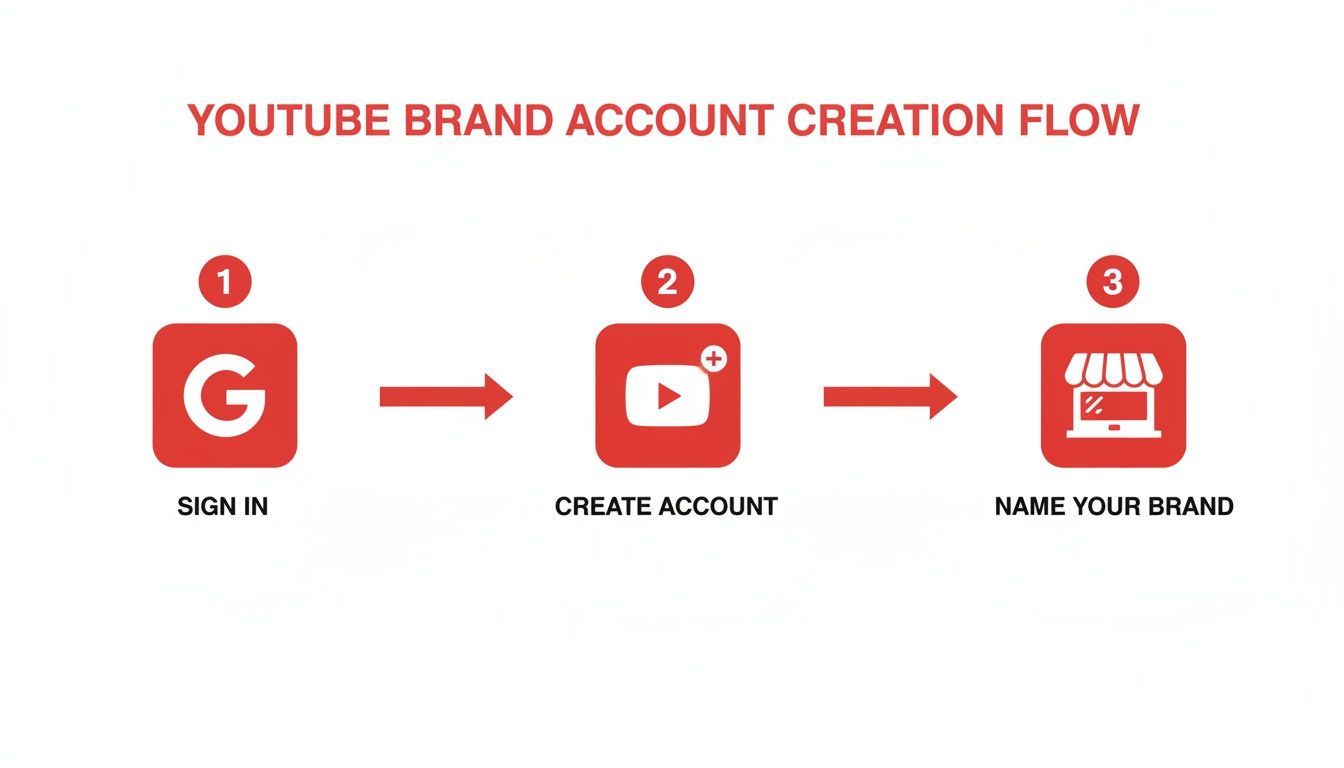
As you can see, it all starts within your existing Google account before you create a separate identity for your channel.
Initiating the Channel Transfer
To kick things off, you need to dive into your YouTube settings. Click your profile icon, head to Settings, and then find Advanced settings. In there, you'll see the option to "Move channel to a Brand Account."
Before you click that button, take a breath. It’s important to know exactly what moves with your channel and what gets left behind. For the most part, YouTube does a great job of migrating the essentials.
- What Moves: Your videos, subscribers, channel icon, and banner art all make the trip.
- What Doesn't Move: Comments, your verification badge (you’ll have to get it re-verified), and some community posts won’t transfer. Your custom URL is supposed to move, but I’ve seen it lag or hit a snag, so be prepared for a potential delay.
Pro Tip: I always recommend taking a few precautionary steps. Grab some screenshots of your key analytics and, more importantly, use Google Takeout to download a complete backup of your channel. It’s highly unlikely you’ll need it, but having that safety net offers priceless peace of mind.
Completing and Verifying the Move
Once you start the transfer, YouTube will ask you to select which Brand Account you want to move to. You can pick an existing one or create a new one on the spot. Pay close attention here—you are about to permanently delete the channel currently associated with that Brand Account (which is usually an empty, new one) and replace it with your established channel.
After you confirm, YouTube takes over. The whole thing usually takes just a few minutes. Once it’s finished, your channel will officially live under its new Brand Account. Now you can finally start adding managers and editors without handing over your personal Google password.
For entrepreneurs looking to get a serious jumpstart, another path is to acquire an aged YouTube channel. These channels often come with a history and an existing subscriber base, which can be a compelling shortcut for those wanting to bypass the initial grind.
Granting Secure Access to Your Team
The real magic of a YouTube Brand Account isn't just about the name—it’s about building a team without handing over the keys to your entire Google account. This is how you go from being a one-person show to running a real content operation.
Forget sharing your personal password, which is a huge security nightmare. With a Brand Account, you can give specific people specific jobs, all with controlled access. This is absolutely essential if you're running a faceless channel or just getting serious about scaling up. You can bring on an editor, a scriptwriter, or a VA to handle comments, and your core account stays completely secure.

Knowing how to create a Brand Account on YouTube is the first hurdle. Mastering its permissions is what truly fuels your growth.
Understanding The Key User Roles
YouTube gives you a few different roles to assign, and each comes with its own set of permissions. Picking the right one is crucial for delegating work without losing control of your channel. The main roles you'll be working with are Owner, Manager, and Editor.
Think of it like this: you wouldn't give a new intern the master key to the office on their first day. The same logic applies here. You only want to give team members the level of access they genuinely need to do their job.
- Owner: This is the top dog. An Owner can do absolutely everything, including adding or removing other owners and managers. They can even delete the entire channel. You should always have at least one owner, but be extremely careful about adding a second one.
- Manager: This role is perfect for a trusted business partner or a senior team member who runs the day-to-day operations. Managers can upload videos, edit channel details, check analytics, and manage comments. The key difference is they cannot delete the channel or mess with owner-level permissions.
- Editor: An Editor can do most of the same content tasks as a Manager—uploading, editing, etc.—but they can't manage permissions for other users. This is the go-to role for your video editor or anyone responsible for scheduling content.
Don’t give out Manager access casually. For most freelancers and team members like editors or thumbnail designers, the 'Editor' role provides all the necessary permissions without giving them the keys to your entire channel's user structure.
To make it even clearer, here’s a quick breakdown of what each role can do. Think about your team and where they would fit.
Brand Account User Roles and Permissions
This table summarizes what each user role can and cannot do, helping you assign the right permissions to your team members.
| Role | Key Permissions | Best For |
|---|---|---|
| Owner | Full control: add/remove users, edit everything, delete the channel, link AdSense. | The primary channel founder or a trusted business partner. |
| Manager | Upload/edit/delete videos, view all analytics (including revenue), manage comments. | A channel manager or a senior team member running operations. |
| Editor | Same as Manager, but cannot access revenue data or manage user permissions. | Video editors, content schedulers, and thumbnail designers. |
| Editor (Limited) | Same as Editor, but cannot view revenue data. | A role to grant if you need an editor to have slightly more restricted access. |
| Subtitle Editor | Can only add, edit, and remove subtitles. Nothing else. | A freelancer hired specifically for creating captions. |
| Viewer | Can view all channel data, including revenue. Cannot edit anything. | An analyst or consultant who needs to see performance data. |
| Viewer (Limited) | Can view channel data but cannot see revenue information. | An advertiser or brand partner checking your channel's stats. |
Having these distinct roles allows you to safely and efficiently delegate the work required to keep a channel growing.
Practical Scenarios for Assigning Roles
So, how does this look in the real world? Let's say you're running a faceless YouTube automation channel. Your team might be structured something like this:
- Your freelance video editor gets the Editor role. This lets them upload the finished videos and pop in the titles and descriptions, but they can't touch user permissions or see how much money the channel is making.
- A contractor you hired for subtitles gets the Subtitle Editor role. Their access is locked down to one single task: adding, editing, and removing subtitles for accessibility. That’s it.
- An advertiser checking performance gets Viewer (Limited) access. This allows them to see your analytics and view counts, but all the sensitive revenue data is hidden, protecting your financial privacy.
This level of granular control is precisely why a Brand Account is so powerful. You can build a sophisticated, global team to run your channel 24/7 without ever putting your personal Google account on the line. It’s the professional way to manage a growing media asset.
Optimizing Your New Channel for Monetization
Alright, your Brand Account is live. Think of it like an empty storefront you just leased—now comes the real work of turning it into a business that attracts customers and makes money. Setting up your channel for monetization isn't something you do later; it's a mindset and a strategy you implement from the very beginning.
Everything you do from this point forward sends signals to YouTube's algorithm and potential advertisers. You're telling them what your channel is about, who it's for, and why it's valuable. This is all about building a professional foundation from day one, which is absolutely critical for faceless channels that have to rely on top-notch branding and content to build an audience.
Laying the SEO Foundation
YouTube is a search engine. If you want people to find you, you have to speak its language. The algorithm needs clear, consistent clues to figure out what your videos are about so it can show them to the right people. This all starts with keywords.
- Channel Name: Pick something that's memorable but also hints at your niche. For instance, a name like "Wealth Automations" is far more descriptive and SEO-friendly than "John's Cool Videos."
- Channel Description: This is your elevator pitch to the algorithm. Use the first couple of sentences to clearly state your channel's purpose with your main keywords. Tell viewers what they'll get, the topics you cover, and when you upload.
- Channel Keywords/Tags: Dive into your advanced settings and add channel-wide keywords. Think broad and specific. List your main niche ("AI marketing tools"), then add related subtopics ("ChatGPT tutorials," "automation workflows"), and you can even include names of similar channels to help YouTube place you in the right neighborhood.
Designing a Professional Brand Identity
People judge a book by its cover, and they'll judge your channel by its branding in a split second. A clean, professional look builds instant trust and makes people assume your content is high-quality, too. For a faceless channel, this isn't optional—your brand is your face.
Your channel banner and profile picture are your digital storefront. A polished look suggests high-quality content inside, encouraging clicks and subscriptions before a single video is even watched.
Your profile picture should be a crisp, high-resolution logo that's easy to recognize even as a tiny icon. Your channel banner is your billboard—use that prime real estate to state your value proposition and upload schedule. Don't worry if you're not a designer; tools like Canva have tons of free templates to get you started.
Preparing for the YouTube Partner Program
Getting monetized is about more than just hitting subscriber and watch-time numbers. You need to build a channel that advertisers actually want to associate with, and that means focusing on quality from the jump.
How you set up your Brand Account directly impacts its earning potential. While YouTube boasts a mind-boggling 2.7 billion monthly users, the reality is that less than 1% of channels ever hit 100,000 subscribers. This huge gap creates a massive opportunity for creators who build with a monetization-first strategy, especially for faceless creators using automation to scale their content.
To keep your production quality high, you might want to look into things like AI audio noise reduction techniques. Trust me, clean audio can be even more important than perfect video for keeping viewers engaged.
Of course, if you want to skip the grind altogether, there's always the option to start with a pre-monetized channel. You can actually acquire a channel that's already eligible to earn from day one. You can find these at https://monetizedprofiles.com/products/monetized-youtube-channel, and it’s a massive shortcut that lets you focus entirely on making great content.
Got Questions About YouTube Brand Accounts? Let's Clear Things Up
Making the switch to a Brand Account is a big step, and it’s natural to have a few questions. You're building a business, after all, so getting the foundation right is key. I've heard these same questions from countless creators over the years, so let's walk through them.
Getting these details straight from the beginning will help you build your channel with confidence, knowing it's set up for security and future growth.
Can I Really Have More Than One Brand Account?
You bet. In fact, this is one of the best features of the whole system. You can create and run multiple YouTube channels from a single Google account.
This is a game-changer for anyone managing a portfolio of channels, like an agency handling client work or an entrepreneur building out several faceless channels in different niches. Each Brand Account is its own little world—separate name, branding, analytics, and team members. It keeps everything clean and organized.
What's Going to Happen to My Custom URL?
If you're moving an existing channel, your custom URL is supposed to come along for the ride with your videos and subscribers. Most of the time, it's a smooth transition.
That said, technology isn't always perfect. You might see a short delay before the URL is fully active on the Brand Account. It's always a good idea to double-check that everything moved over correctly once the process is finished.
Just starting a new channel? You’ll still need to hit YouTube's usual milestones to claim a custom URL—that means having at least 100 subscribers and your channel being over 30 days old.
I'm a Solo Creator. Do I Really Need a Brand Account?
It might not feel necessary right now, but I strongly recommend it. Think of it as future-proofing your business. Setting up a Brand Account from day one gives you the option to scale without any headaches later.
You might be a one-person show today, but what happens when you’re so successful you need to hire an editor or a virtual assistant? A Brand Account makes giving them access safe and easy. It also separates your channel as a distinct business asset, which is a lifesaver if you ever decide to sell it. Trust me, selling a personal channel is a logistical nightmare.
For more on building your channel like a business, check out the MonetizedProfiles blog.
Will Moving My Channel Make Me Lose My Verification Badge?
This is the big one for established creators, so pay close attention. Yes, if your channel is already verified, moving it to a Brand Account will remove your verification badge.
You'll have to go through the re-application process once the channel is set up on its new Brand Account home. This is a serious trade-off to consider before you commit. If you're starting a new channel, you can just apply for the badge on the Brand Account once you're eligible.
Ready to skip the grind and start earning immediately? At MonetizedProfiles, we provide fully monetized YouTube accounts that are ready to generate ad revenue from your very first video upload. Check out our available channels and fast-track your path to becoming a professional creator today at https://monetizedprofiles.com.


